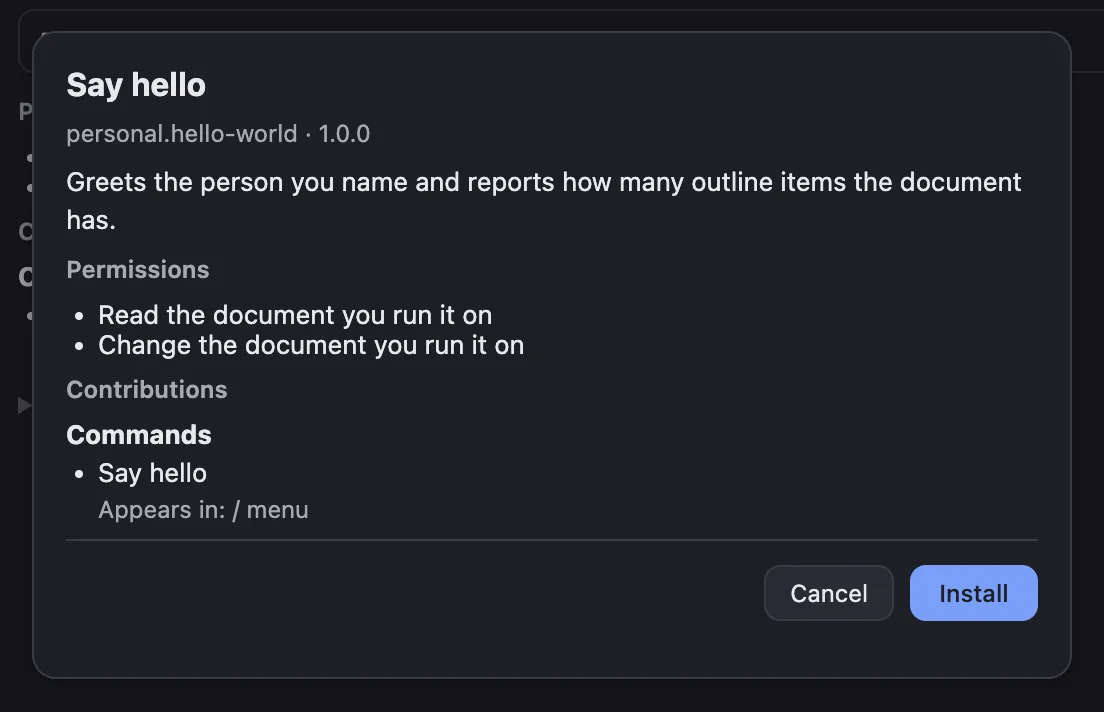
Before an extension you import, or one your team shares, can run, you approve it. MarkNode shows you its permissions — what it is allowed to do — in plain words, so you can decide whether you are comfortable with them.
The Permissions
An extension can ask for two permissions:
| Permission | What it means |
|---|---|
| Read the document you run it on | When you run one of its commands, it can read the document that command runs on — for example, to find its headings. |
| Change the document you run it on | When you run one of its commands, it can change that document — for example, to add a table of contents. |
If an extension asks for neither, MarkNode shows It does not ask to read or change your documents. That is usual for an extension that only adds templates, mind map themes or preview styles.
Permissions apply only while a command runs, and only to the document it runs on. An extension cannot open your other documents or files, and it does nothing until you run one of its commands.
When MarkNode Asks You
MarkNode asks you once, before the extension is first switched on, and again only if a later version asks for more:
- When you import an extension — the review lists its permissions, and choosing Install approves them. See Adding Extensions.
- When your team shares an extension — it is switched off and shows Needs approval until you choose Approve.
- When a team extension’s update asks for more — it is switched off again and shows, for example, Update needs approval: adds Change the document you run it on. Choose Approve to accept the new version, or Keep disabled. An update that asks for nothing new keeps working without asking.
- When you import a newer version — the review shows what the update adds, and choosing Install approves it.
You are not asked each time you run a command. The built-in extensions are part of MarkNode and need no approval. Files you place in your Extensions folder yourself are not reviewed either — see The Extensions Folder.
Deciding Whether to Allow
- Does it need what it asks for? A command that adds or rearranges text needs to change the document. An extension that only offers templates or styles needs no permissions at all.
- Do you know where it came from? Install extensions only from people and teams you trust.
- Not sure? Choose Cancel or Keep disabled. Nothing is changed, and you can come back to it later.
Even after you allow an extension, you can undo anything a command does with Cmd+Z on macOS or Ctrl+Z on Windows and Linux.
Changing Your Mind
To stop an extension from running, open Tools > Templates & Extensions…, select Extensions, and turn its switch off. It stays off, even after you restart MarkNode, until you turn it back on. To remove an extension you imported, choose Uninstall. See Managing Extensions.