An extension adds new abilities to MarkNode. It can add commands that tidy or reshape the document you are working on — add a table of contents, renumber your headings, turn a list into headings — and it can bring templates, mind map themes and preview styles with it.
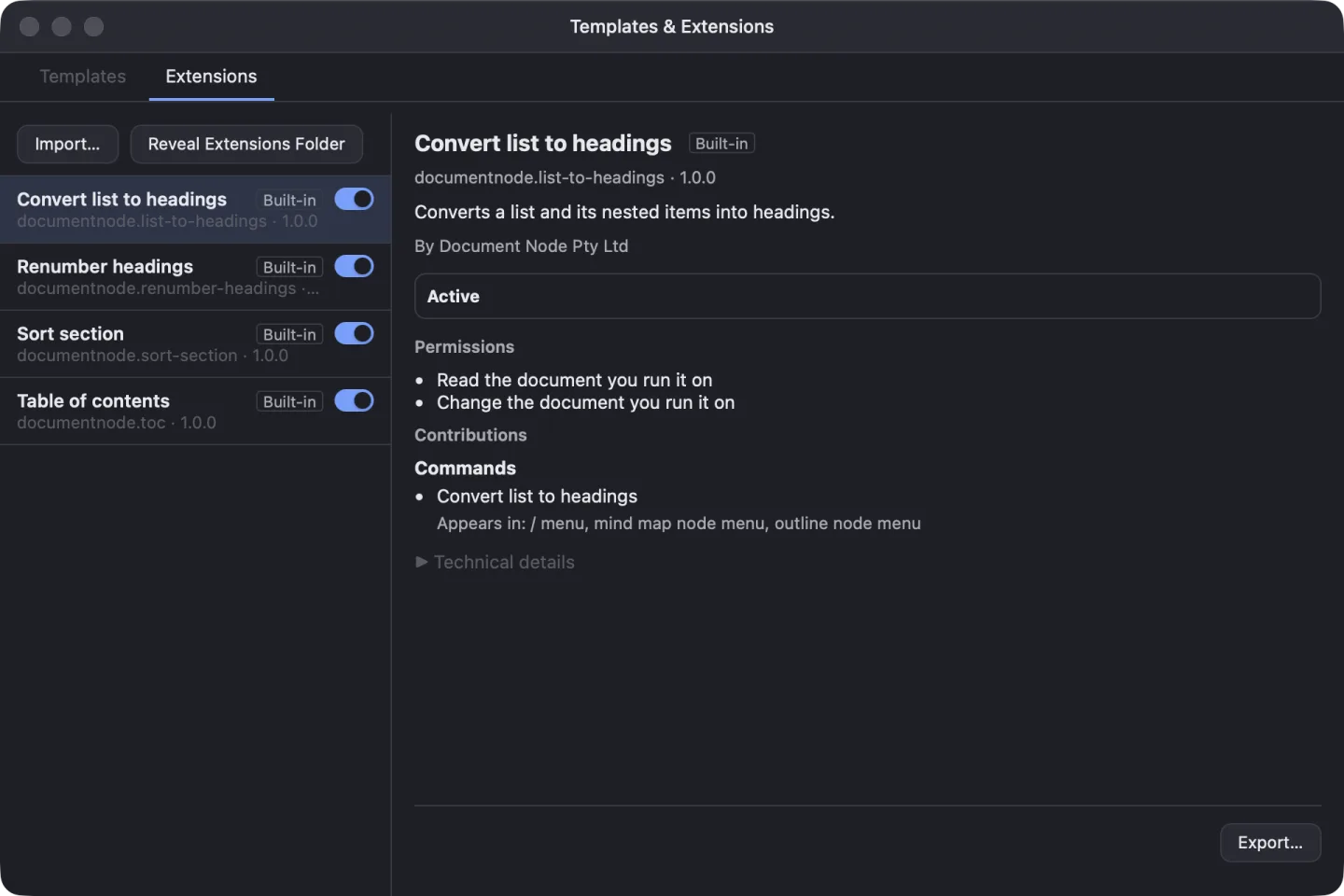
MarkNode comes with four built-in extensions you can use straight away. You can add more by importing an extension file, and if you are part of a team, your team can share extensions with you.
Where Extensions Appear
- Commands appear in the editor’s
/menu, in the Extensions submenu when you right-click a mind map or outline node, and in Tools > Run Extension Command… (Cmd+Shift+Pon macOS,Ctrl+Shift+Pon Windows and Linux). See Running Extension Commands. - Templates, mind map themes and preview styles appear next to your own, under From followed by the extension’s name. See Extension Templates and Styles.
- The Extensions section of the Templates & Extensions window lists every extension you have. There you can see what each one does, turn it on or off, and add, export or remove extensions. Open it with Tools > Templates & Extensions…, then select Extensions at the top of the window. The Help button (a ? icon) at the right end of the section’s toolbar opens links to Using extensions (this guide) and Writing extensions.
The Help menu has an Extensions Guide item that opens this guide, and a Templates Guide for templates.
You Stay in Control
- You choose what to add. An extension is only added when you import it yourself, place its file in your Extensions folder, or approve one your team shares. When you import one or approve a team one, MarkNode first shows you what it is allowed to do. See Permissions and Approval.
- Extensions only touch the document you run them on. An extension works on the open document when you run one of its commands. It cannot open your other files, and it does not run in the background.
- Every change can be undone. The changes a command makes are a single step you can undo with
Cmd+Zon macOS orCtrl+Zon Windows and Linux. - You can turn any extension off at any time, and remove the ones you added. See Managing Extensions.
Plans and Editions
Extensions are free and available in the MarkNode desktop app on macOS, Windows and Linux. Sharing extensions with a team needs a seat in an Ultimate organisation — see Team Extensions.
The Mac App Store edition has the same Extensions features as the direct download: you add, run and manage extensions in exactly the same way.
Building Your Own
This guide covers using extensions. If you want to write your own, see Writing MarkNode extensions.