Extension commands work on the Markdown document you have open. Each command appears in the places its extension chooses. To see where a command appears, select its extension in the Extensions section: each command shows Appears in followed by its menus.
Commands appear only when their extension is switched on, and only for Markdown documents.
From the / Menu
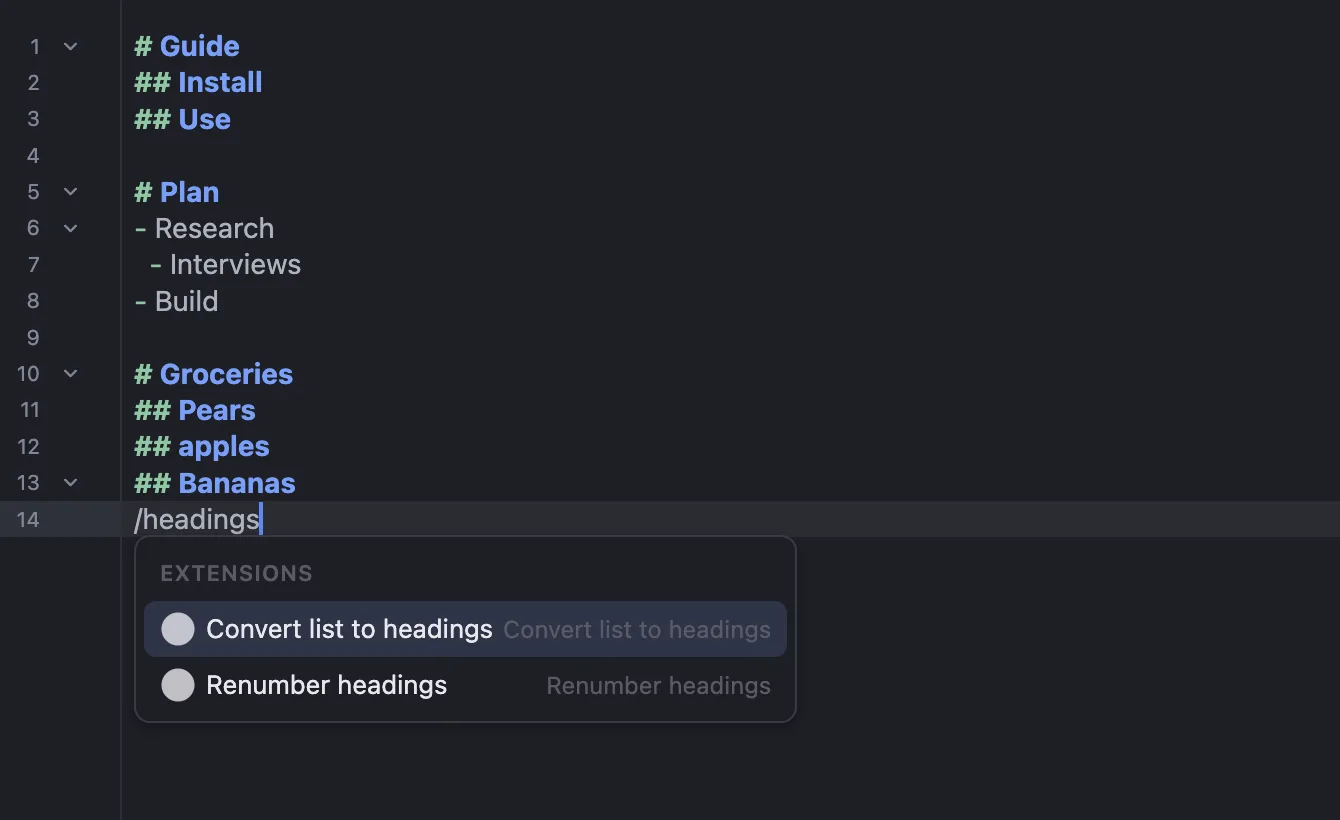
- In the editor, type
/to open the/menu. - Keep typing to filter, for example
/renumber. Extension commands are listed under Extensions, each with its extension’s name beside it. - Choose the command, or press
Enterwhen it is highlighted.
From a Mind Map or Outline Node
Some commands work on one part of your document — for example, sorting the sections under one heading.
- In the mind map or outline, right-click a node. List items appear as nodes only after you show them — see Built-in Extensions.
- Choose Extensions, then the command.
The command runs on that node and the content under it.
From the Command Picker
The command picker lists every command from your switched-on extensions, wherever else they appear.
- Choose Tools > Run Extension Command… (the Tools menu also has the template items), or press
Cmd+Shift+Pon macOS orCtrl+Shift+Pon Windows and Linux. - Type to filter the list.
- Choose the command, or choose Cancel to close the picker.
If no Markdown document is open, MarkNode tells you to Open a Markdown document to run an extension command.
While a Command Runs
Most commands finish straight away. If one takes longer, MarkNode shows Running followed by the command’s name, with a Cancel button. Choose Cancel to stop it. If the command was already finishing, its change may still be made, so check the document and use Undo if you don’t want the change.
Some commands ask you something first, such as a name or a choice from a list. Fill in the form and choose OK, or choose an item from the list. Cancel only skips the question: the command decides what to do without your answer, and some carry on. To be sure the command stops, choose Cancel run.
Undoing a Command
Everything a command changes is a single step. To undo it, use Undo: press Cmd+Z on macOS or Ctrl+Z on Windows and Linux.
If you ran the command from the / menu, the first Undo removes the command’s changes, and the next Undo brings back the / text you typed.
When a Command Doesn’t Work
If a command can’t finish, MarkNode tells you what happened. Usually your document is left unchanged, for example when The document changed while the command ran. In that case, choose Run Again to try once more.
If MarkNode can’t tell whether the command finished, it says the command may have changed the document. Inspect it before running the command again. Look at the document first: if the change is there, there is nothing more to do; if it isn’t, run the command again.
For more on what to do, see Troubleshooting Extensions.