The public gallery is where MarkNode users share packs of templates and mind map themes. Add a pack, and its templates and themes are copied into your own library, ready to use. When you’ve made something others could use, publish it as a pack of your own.
Browsing is free and needs no account. Adding and publishing packs needs you to be signed in, on any plan.
Opening the Gallery
Open it in any of these ways:
- Choose Tools > Public Gallery…
- Click Gallery in the toolbar of the Templates & Extensions window
- Click Public gallery at the top of the mind map theme picker
The gallery opens in its own window, with two tabs: Browse and My submissions.
Finding a Pack
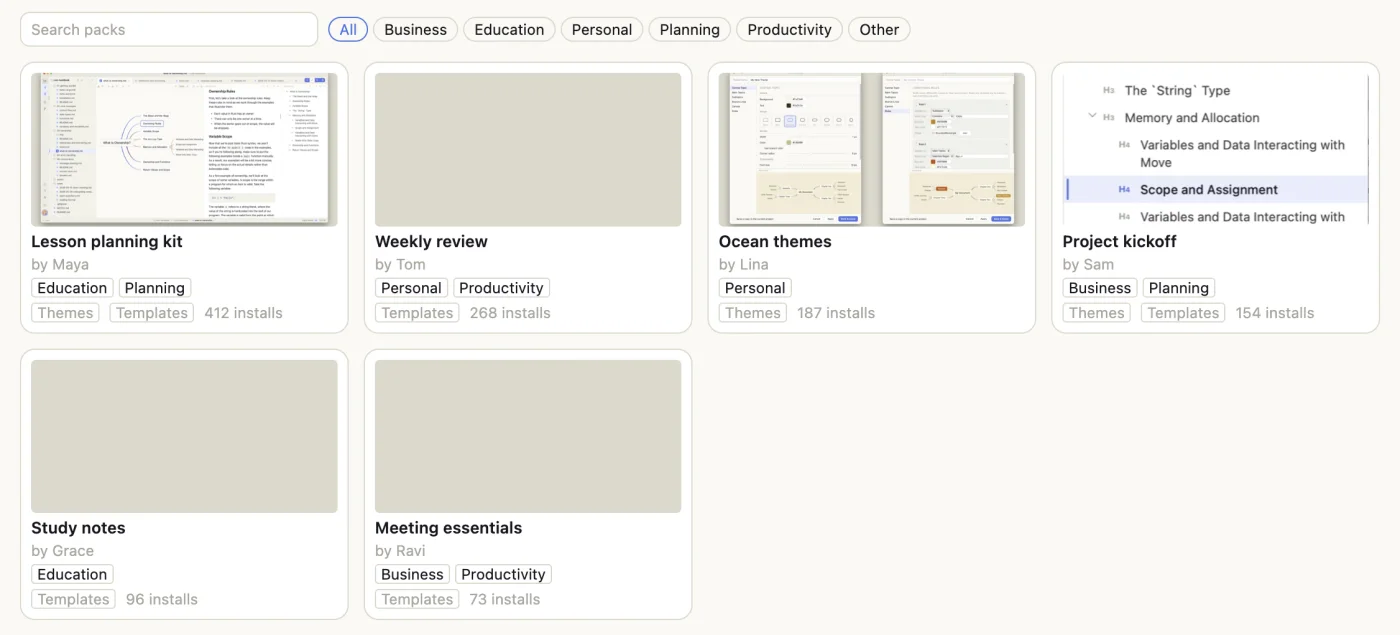
On Browse:
- Type in Search packs to find packs by name and description.
- Click a category, such as Education or Planning, to see only those packs. All shows every pack.
- Each card shows the pack’s name, its author, whether it holds Templates, Themes or both, and how many people have added it. Packs marked Official are ones the gallery team has highlighted.
Scroll down to load more packs. If nothing matches, click Clear search and category to start again.
Click a card to open the pack. You see its description, preview images and what kinds of items it holds. The names of the individual templates and themes appear once you’ve added the pack.
Adding a Pack to Your Library
- Open the pack.
- Click Add to my library. If you’re not signed in, MarkNode asks you to sign in first.
- When the button says Added, a notification says how many templates and themes were added. Click Open Templates & Extensions to see the new templates.
The pack’s templates go into your own templates, and its themes into Custom Themes in the mind map theme picker. They are your own copies: change or delete them as you like.
Nothing in your library is ever replaced. When you already have a template or theme with the same name, the new one gets (2) added to its name, and the notification tells you which items were renamed.
Adding a Pack From the Website
You can also browse packs at marknode.com/gallery. On a Mac, click Add to MarkNode on a pack’s page: MarkNode opens the pack in the gallery window, and you click Add to my library there. If MarkNode isn’t installed, you are taken to the download page.
On Windows and Linux, open the gallery in MarkNode and search for the pack by its name.
Publishing a Pack
You can publish your own templates and custom mind map themes. Every pack is reviewed before it appears in the gallery.
- Start the pack in one of these ways:
- In Templates & Extensions, tick the templates to include, then choose More actions (
⋮) > Publish to Gallery…. You can also right-click a single template. - In the mind map theme picker, click Theme actions (
⋯) on a custom theme, then choose Publish to gallery.
- In Templates & Extensions, tick the templates to include, then choose More actions (
- Under Items, check what’s in the pack. Click Add from my library… to add more of your templates or themes, and use the arrows to put them in order. A pack holds up to 20 items.
- Fill in Pack name, Description and Author display name. The author name is shown publicly; your email address never is.
- Choose up to five Categories.
- Check Preview images. MarkNode makes them from the pack’s themes; give each one a short description in Alternative text. A pack of templates only has no preview images.
- Click Preview to see the pack as others will, then Submit for review.
If something needs fixing first, such as a missing name, MarkNode lists it under Fix before submitting.
Following Your Pack’s Review
Open the My submissions tab to see your packs and where each one stands:
| Status | What it means |
|---|---|
| Pending review | Waiting for the gallery team to look at it |
| Live | Public in the gallery |
| Rejected | Not accepted. Open the pack to read the reviewer’s note. |
| Live · update pending review | Your update is waiting; the current version stays public |
| Live · update rejected | Your update wasn’t accepted; the current version stays public |
| Unpublished | Removed from the gallery by the gallery team. You can still submit an update. |
The list doesn’t update by itself. Click Refresh to check for news.
Open a pack to see its Public version and Submitted version side by side, and its History. Then, depending on its status:
- Edit submission — change a pack that is still waiting for review.
- Revise and resubmit — fix a rejected pack and send it again.
- Submit update — send a new version of a live or unpublished pack for review. In the pack builder, click Replace with my current version on an item to bring in your latest edits.
If Something Goes Wrong
- The public gallery needs a connection — check your network and try again. Your library and the pack builder’s content are kept.
- Too many requests — wait about a minute, then click Retry.
- This pack is no longer available — the pack was removed from the gallery.