Most MarkNode settings apply globally to every project you open. Some settings, though, are inherently project-specific — for example, which subfolder holds the documents you publish. The Project tab in the Settings dialog gives you a dedicated place to override the global defaults for the current project, with your changes saved alongside the project itself.
Opening Per-Project Settings
Open Settings (Cmd+, on macOS, Ctrl+, on Windows and Linux) from any project window. The Project tab appears at the bottom of the left-hand list, below the app-wide General, Editor, and Mind Map pages. The full project path is shown at the top of the page so you know which project your changes will affect.
The Project tab is hidden when you open Settings from the welcome window or when no project is loaded — per-project settings only make sense when you have a project to attach them to.
How Overrides Work
When MarkNode reads a setting, it first looks for an override in the current project. If one exists, that value is used; otherwise the global default applies.
Per-project overrides are stored in your project’s .dn/ folder, the same place MarkNode keeps other project state. If you check the .dn/ folder into Git, your overrides travel with the repository so every collaborator picks up the same configuration.
Document Root
The most common reason to use per-project settings is to configure a Document Root — a subfolder that should be treated as the base for relative paths and image resolution. This is useful when your project has content nested under a subfolder, for example:
- A Hugo or Jekyll site where content lives under
content/or_posts/. - A monorepo where the documents are in
docs/and the rest is code. - A course or book project with chapters under
course/.
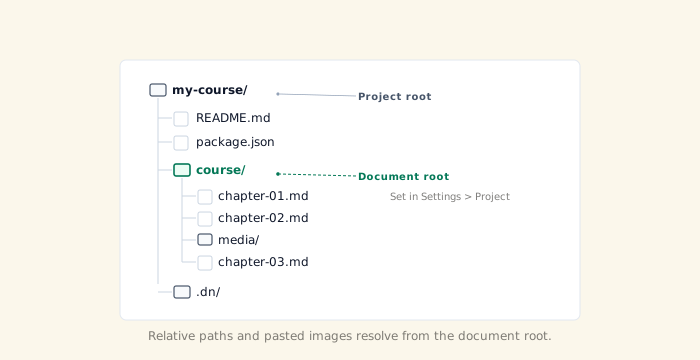
On the Project tab, find Document root and either type a path relative to the project root or click Browse to pick a folder. Leave the field empty to use the project root itself (the default).
Once a document root is set:
- Pasting an image saves it to the configured media folder under the document root, not the project root.
- The file explorer context menu offers two copy-path actions: Copy Path from Project Root (the existing behaviour) and Copy Path from Doc Root (relative to the document root). When no document root is set, both produce the same result.
- Internal link rewriting and reference search use the document root when applicable.
If the folder you specify does not exist yet, MarkNode shows a warning but still saves the setting — handy if you are setting up a project before its content folder is created.
Available Per-Project Settings
The Project tab currently holds two settings:
- Document Root — described above.
- Auto-show outline panel — whether the outline opens automatically for this project (remember the last state, always show, or always hide).
More settings will become per-project as future releases land — anything inherently tied to a single project rather than to your personal preferences.
If you are looking for global preferences (theme, editor layout, mind map defaults), open the General, Editor, or Mind Map tabs in the same Settings dialog. Those apply to every project.