MarkNode offers several layout modes to suit different workflows — writing, reading, and reviewing. A single control in the tabs strip lets you show or hide each pane at any time without losing your place in the document.
The Workspace Layout Pill
A four-segment pill sits in the workspace tabs strip and controls which panes are visible. From left to right the segments are:
| Segment | What it toggles | Shortcut |
|---|---|---|
| Mind map | The mind map side panel | Cmd+Shift+M / Ctrl+Shift+M |
| Editor | The Markdown source editor inside the editor pane | — |
| Preview | The rendered preview inside the editor pane | — |
| Outline | The outline side panel | Cmd+Shift+L / Ctrl+Shift+L |
Each segment lights up when its pane is visible. Click a segment to toggle that pane on or off. Hovering a segment shows a tooltip with its name and shortcut (where one exists).
The Mind map and Outline segments are independent toggles — turning either on or off does not affect the other panes. The Editor and Preview segments work as a pair to drive the editor pane’s display mode (see below).
Split View
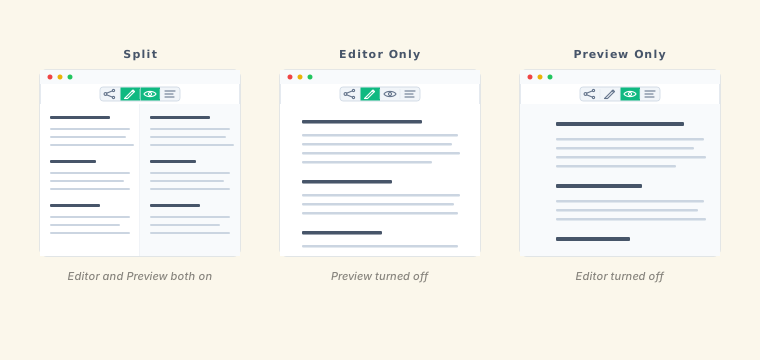
When both the Editor and Preview segments are active, the editor pane shows the Markdown source on the left and the rendered preview on the right, side by side. This is the default for editing.
The divider between the two panes is draggable. Drag it left to give more space to the preview, or right to give more space to the editor. The split position is saved per-document.
Scroll Sync
In split view, scrolling either pane moves the other to the corresponding position, so the editor and preview stay aligned as you read through a long document. Scroll sync is always on in split view and requires no setup.
Preview-Only Mode
Click the Editor segment when both Editor and Preview are active to hide the source editor and show only the rendered preview. Use this when reading a finished document or reviewing formatted output without the distraction of Markdown syntax.
The outline panel and file explorer remain accessible. Clicking an outline item scrolls the preview to that section.
Editor-Only Mode
Click the Preview segment when both Editor and Preview are active to hide the preview and maximise the writing area. This is useful for drafting long documents or when you do not need to see the rendered output.
The Editor and Preview segments work together as a pair — one of them is always on. Clicking the active segment when it is the only one showing has no effect, so you never end up with both panes hidden.
Copying Formatted Text from the Preview
To copy text from the preview with its formatting preserved, select text in the preview pane and press Cmd+C (macOS) or Ctrl+C (Windows/Linux). The copied text retains bold, italic, links, and other inline formatting when pasted into applications that accept rich text, such as email clients, word processors, or note-taking apps.
Pasting into a plain-text destination such as a terminal or a plain-text editor gives unformatted text.
Preview Right-Click Context Menu
Right-clicking in the preview pane opens a context menu with:
- Copy — copy the selected text
- Preview style — a submenu for switching the preview stylesheet (see Preview Themes)
- Save as DOCX — export the current document to Word
- Task List — on a checklist line, a submenu to check all, uncheck all, or reset the list
Right-clicking directly on a link or image instead shows link-specific actions — see Links and Media.
PDF Viewer
Opening a PDF file from the file explorer displays it in an inline PDF viewer instead of an external application. The viewer includes:
- Outline / Bookmarks panel — if the PDF contains a bookmark structure, it is shown in a collapsible tree. Click a bookmark to jump to that page.
- Thumbnail panel — a scrollable strip of page thumbnails for visual navigation. Click a thumbnail to jump to that page.
- Standard zoom controls and a page number input for direct navigation.
Dynamic Preview Width
The preview pane adjusts its content width automatically as you resize the window or drag the split divider. On wide displays the preview centers its content with comfortable margins to keep line lengths readable. As the preview pane narrows — for example when you widen the editor — the content expands to use the available width. This behavior requires no configuration.