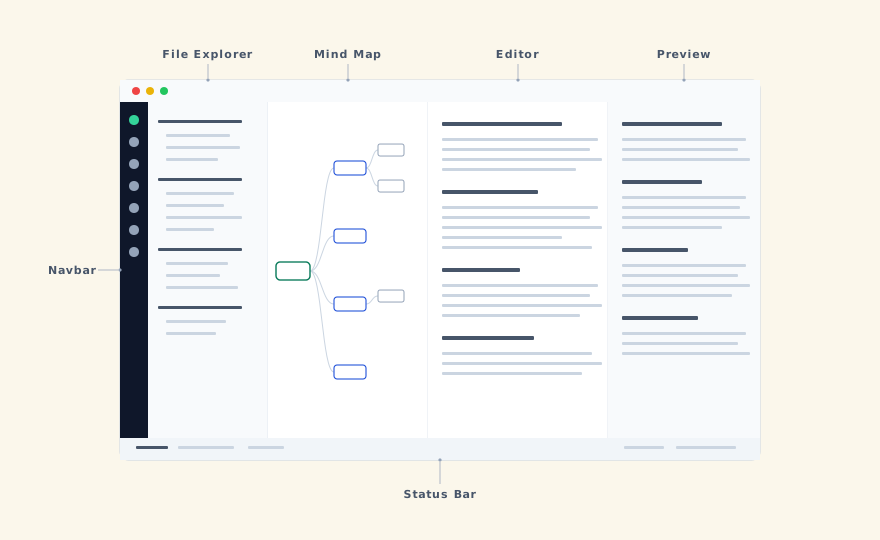
MarkNode’s interface is organized around a central editor, with supporting panels on each side and along the bottom. All panels can be resized by dragging the splitters between them, and the layout is saved automatically so it is restored the next time you open the app.
Navbar
The navbar is a narrow vertical icon bar along the far left edge of the window. It controls which panels are visible and which sidebar view is active. From top to bottom, the icons are:
- Files — shows the file explorer in the left sidebar
- Mind Map — toggles the mind map panel
- Outline — toggles the outline panel
- Recent Files — shows recently edited files in the left sidebar
- Source Control — shows git status and operations in the left sidebar (visible when the project is a git repository)
At the bottom of the navbar:
- Terminal — toggles the terminal panel
- Find — toggles the Find panel, a bottom panel that collects project-wide search and reference results in tabs
- Problems — toggles the Problems panel, a bottom panel that lists issues to fix in the project, such as broken links and image references
- Feedback — opens the feedback form
- User avatar — shows your account initials; click to open your account
Only one sidebar view (Files, Recent Files, or Source Control) is active at a time. Panel items (Mind Map, Outline, Terminal, Find, Problems) can be toggled independently. Terminal, Find, and Problems share the bottom panel and switch between each other.
File Explorer
The file explorer appears in the left sidebar when the Files icon is selected in the navbar. It shows the folder structure of your open project as a hierarchical tree. Clicking a file opens it in the editor; clicking a folder expands or collapses it.
The sidebar header includes buttons for creating a new file, creating a new folder, and a “More” (⋮) menu with additional actions such as Expand All, Collapse All, and Reload from Disk. Right-clicking a file or folder opens a context menu with options to rename, delete, cut, copy, paste, or create new files and folders.
Mind Map and Outline Panel
The mind map and outline panel occupies the center of the window and provides a structural view of your document based on its heading hierarchy.
- Mind map view — displays headings as a branching diagram radiating from the document title. Each node corresponds to a heading in the document. Toggle with
Cmd+Shift+Mon macOS orCtrl+Shift+Mon Windows and Linux. - Outline view — displays headings as a nested list, similar to a table of contents. This is a more compact view that works well for long documents with deep nesting. Toggle with
Cmd+Shift+Lon macOS orCtrl+Shift+Lon Windows and Linux.
Clicking any node or outline entry scrolls the editor to that heading. The active heading is highlighted in both views as you move the cursor through the document.
Editor
The editor sits to the right of the mind map. At the top of the editor area is a tab bar showing all open files — click a tab to switch between them, drag to reorder, or right-click for options like Close, Close Others, and Close All.
Below the tab bar is a formatting bar with quick-access buttons for common Markdown formatting — bold, italic, strikethrough, inline code, block quote, headings (H1–H3), bullet/numbered/task lists, code block, and table. The tabs strip also holds the workspace layout pill, which toggles the Mind map, Editor, Preview, and Outline panes (see Split View and Display Modes).
The editor provides syntax highlighting, bracket matching, and line wrapping. Markdown formatting shortcuts — such as Cmd+B / Ctrl+B for bold and Cmd+I / Ctrl+I for italic — work directly. The editor also supports multiple cursors and rectangular selection for more advanced editing.
Preview Panel
The preview panel sits to the right of the editor and shows a rendered HTML view of the current document. It updates as you type. Clicking a heading in the preview scrolls the editor to the corresponding position.
You can resize the preview panel by dragging the splitter between the editor and the preview. If you prefer to focus entirely on writing, turn off the Preview segment in the workspace layout pill to give the editor the full width.
Terminal Panel
The terminal panel sits at the bottom of the window and provides a shell session scoped to your project folder. It opens with your default shell and starts in the project root directory. You can open multiple terminal sessions using the tab bar inside the panel.
Status Bar
The status bar runs along the very bottom of the window. It displays at-a-glance information about the current file and project:
- Git branch — the name of the current branch and a count of changed files, when the project is a Git repository. The changed-files count is clickable — it opens the Source Control panel.
- File info — the word count, the file type, and the encoding for the current document
Git actions — staging, committing, pushing, pulling — live in the Source Control panel, not the status bar. Open it from the Source Control icon in the navbar (or by clicking the changed-files count).
Resizing and Layout
All major panels — the file explorer, editor, preview, mind map, and terminal — are separated by drag splitters. Drag any splitter to redistribute space between adjacent panels.
The layout you set, including which panels are open and how they are sized, is saved automatically and restored the next time you open MarkNode.