The mind map is a visual representation of your document’s structure. It is generated automatically from your Markdown content and stays in sync with the editor at all times — changes in one are reflected immediately in the other.
How the Mind Map Relates to Your Document
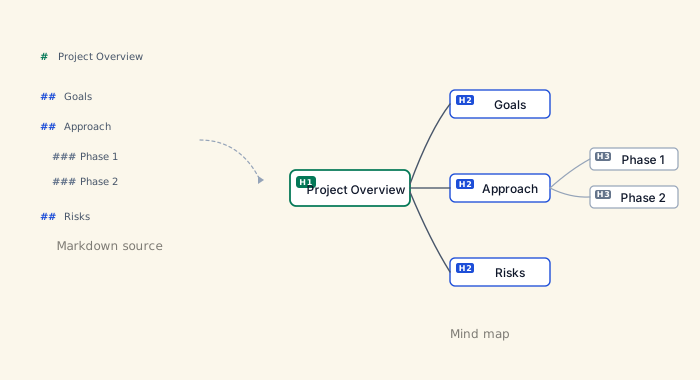
Every heading in your document becomes a node in the mind map. The hierarchy mirrors the heading levels: an # H1 heading becomes the root topic, ## H2 headings become its direct children, ### H3 headings become their children, and so on down to ###### H6. Bullet and numbered list items can also appear as nodes beneath their parent heading — this is off by default and can be turned on with the Toggle List Items button in the mind map toolbar (or in Settings > Mind Map).
Because the relationship is bidirectional, you can think of the mind map and the Markdown source as two views of the same content. You do not need to keep them in sync manually — MarkNode handles that for you.
Toggling the Mind Map
Open or close the mind map with Cmd+Shift+M on macOS or Ctrl+Shift+M on Windows and Linux. You can also use the mind map icon in the toolbar. The editor and mind map can be shown side by side, or you can work in either view alone.
Node Type Badges
Nodes can display a small badge showing what kind of content each one represents — H1 through H6 for headings, or a marker for bullet and numbered list items. These badges are off by default; turn them on with the Toggle Node Type Badges button in the mind map toolbar (or Settings > Mind Map > Show node type badges) when you want to see the structure at a glance without counting heading levels.
Navigating with the Mind Map
Click any node to jump to that section in the editor. The editor scrolls to bring the corresponding heading or list item into view and places the cursor there. This makes the mind map a fast navigation tool for long documents.
Performance
The mind map uses hardware-accelerated rendering, so the canvas stays smooth and responsive even for large documents with hundreds of nodes.