MarkNode is a desktop Markdown editor with a live, interactive mind map. As you write, headings become mind map nodes in real time. But the mind map is not just a read-only visualisation — it is a fully interactive editing surface:
- Navigate — click any node to jump straight to that section in the editor.
- Restructure — drag and drop nodes to reorder or reparent sections. The Markdown is updated to match.
- Rename — double-click a node to rename a heading directly in the mind map.
- Two-way sync — every change flows both ways. Edit a heading in the editor and the node updates; rename a node in the mind map and the Markdown updates.
This makes the mind map a powerful tool for refactoring long documents, reorganising ideas, and seeing the big picture while you work on the details.
What Makes MarkNode Different
Most editors treat writing and thinking as separate activities. MarkNode connects them. Your headings become mind map nodes the moment you type them, so you can see how your ideas relate to each other while you are still forming them. And because the mind map is editable, you can restructure your thinking visually and have the document follow.
Think visually, write in Markdown
Markdown is a plain-text format, which makes it fast to write and easy to manage. MarkNode adds a visual layer on top — the mind map — so you get the speed of plain text and the spatial clarity of a diagram at the same time. You can switch between the mind map and a classic outline view depending on what helps you most at any point in your work.
Your files, your folder
MarkNode works with ordinary files on your filesystem. There is no proprietary format, no sync service to configure, and no account required to get started. Open any folder as a project and MarkNode will display its Markdown files in the file explorer. Your files stay exactly where they are and are always accessible from any other tool.
Available on macOS, Windows, and Linux
MarkNode runs natively on macOS, Windows, and Linux. The experience is consistent across platforms, and keyboard shortcuts follow the platform convention (Cmd on macOS, Ctrl on Windows and Linux).
Downloading MarkNode
Visit marknode.com/download to download the installer for your platform. The page detects your operating system automatically and offers the appropriate download.
Once the download completes, run the installer and follow the on-screen instructions. No additional dependencies or runtimes are required.
Launching for the First Time
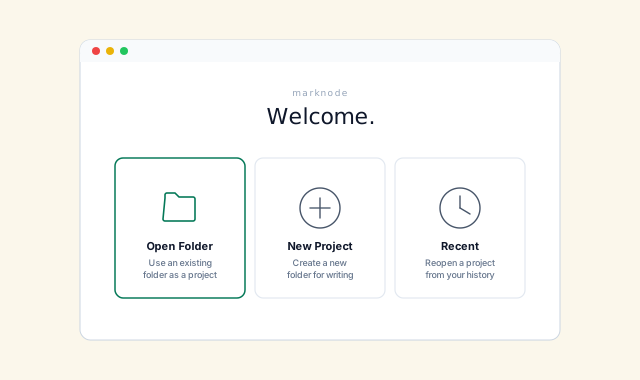
Open MarkNode from your Applications folder (macOS), Start menu (Windows), or application launcher (Linux). The first time you launch the app you will see the welcome screen.
The welcome screen
The welcome screen gives you these options:
- New Project — choose a location and MarkNode will create a new folder there, ready for you to add files.
- Open Project — select an existing folder on your computer to use as a project. MarkNode will read all the Markdown files inside it and display them in the file explorer.
If you have opened projects before, recent projects are listed on the welcome screen so you can pick up where you left off with a single click.
Next Steps
Once you have a project open, take a look at the Interface Overview to get familiar with the main areas of the app. Then follow Creating Your First Document for a hands-on walkthrough of writing Markdown and seeing it reflected in the mind map.