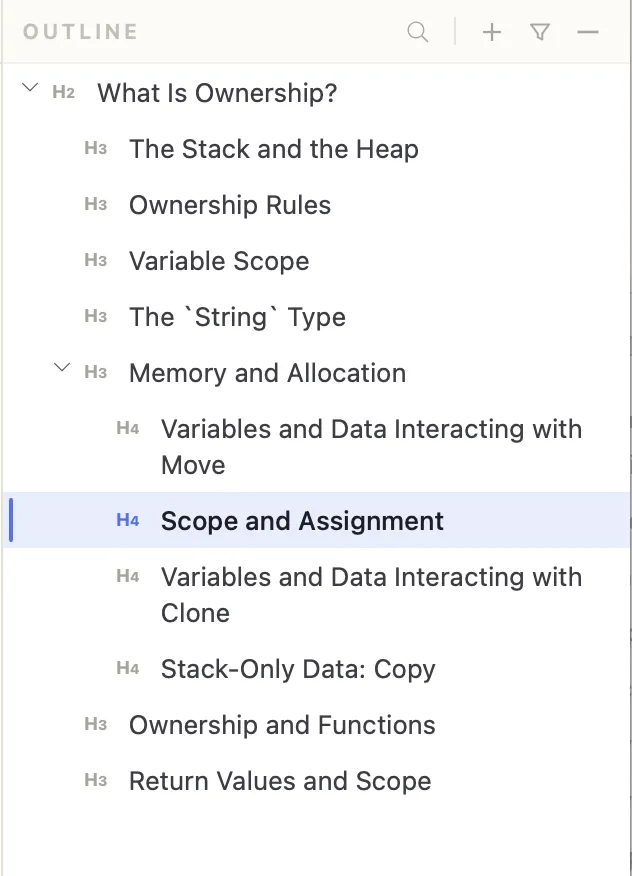
The outline panel displays a collapsible tree of your document’s headings and list items, giving you a structural overview and instant navigation without leaving your current position in the editor.
Opening and Closing the Outline
Toggle the outline panel with Cmd+Shift+L on macOS or Ctrl+Shift+L on Windows and Linux. You can also click the outline icon in the activity rail on the far left. The panel remembers its open or closed state between sessions.
Navigating with the Outline
Click any item in the outline to jump directly to that section in the editor. The editor scrolls to bring the heading or list item into view and places the cursor at the start of that line.
In preview-only mode, clicking an outline item scrolls the preview to the corresponding section instead.
Real-Time Updates
The outline updates as you type. New headings appear immediately, and renaming or deleting a heading is reflected in the tree without any manual refresh.
Customizing What Appears
You can control what the outline includes:
- List items — the panel’s Toggle List Items button shows or hides bullet and numbered list items alongside headings. This is useful for documents that use lists as structural elements rather than prose.
- Heading depth — the deepest heading level shown is the Max heading level setting (H3 through H6) in Settings > Mind Map, which the outline shares with the mind map. For long documents with many sub-headings, a shallower limit keeps the tree manageable.
Expanding and Collapsing Sections
Click the arrow next to any item that has children to expand or collapse that branch, so you can keep a summary view of a long document. (The tree expands fully when you switch to a different file.)
Switching Between the Mind Map and the Outline
The outline and mind map are two different representations of the same document structure, and they are separate panels rather than two modes of one view:
- Outline presents the structure as an indented list, which is well suited for linear documents. Toggle it with
Cmd/Ctrl+Shift+Lor its activity-rail icon. - Mind Map presents the same structure as a node graph, better for visual navigation and brainstorming. Toggle it with
Cmd/Ctrl+Shift+Mor its activity-rail icon.
When they share the same dock location, opening one hides the other. Both update in real time and support click-to-navigate.