MarkNode automatically creates compressed backups of your files every time they are saved — whether by auto-save or manually with Cmd+S (Windows/Linux: Ctrl+S). If you ever lose content or want to go back to an earlier version, you can recover it in a few clicks.
How Auto-Backup Works
Every time a file is saved, MarkNode saves a compressed copy of the previous version before writing the new content. This happens transparently in the background — no extra steps are needed.
- Auto-save triggers after a short pause following your last keystroke (about 1 second of inactivity). Each auto-save creates a backup.
- Manual save with
Cmd+S/Ctrl+Salso creates a backup. - Atomic writes ensure that saves are all-or-nothing. If the app crashes mid-save, your file won’t be left in a half-written state.
Backups are stored in MarkNode’s application data folder, separate from your project files. They do not clutter your project directory or appear in Git.
Empty-Content Protection
MarkNode guards against accidentally saving empty or drastically reduced content:
- If you try to save a completely empty file over a non-empty one, the save is blocked.
- If the new content is significantly smaller than the existing file, MarkNode shows a confirmation dialog when saving manually. Auto-save silently skips to avoid data loss.
Recovering a Previous Version
To restore an earlier version of a file:
- Right-click the file tab, right-click the file in the file explorer, or use the File menu, and choose Recover Previous Version.
- The recovery dialog opens, showing a list of available backups sorted by time.
- Select a backup to see a read-only preview of its content.
- Choose one of the restore options:
- Restore — replaces the current file with the backup content. MarkNode creates a backup of the current content first, so this is always reversible.
- Restore to New File — saves the backup as a new file alongside the original, without modifying it. The new file is named after the backup’s timestamp, like
document-recovered-20260514-153000-123.md.
Browsing All Backups
The recovery dialog also has a Browse All Backups view that lists every file in your project that has backups available. This is useful when:
- A file was renamed outside MarkNode and you need to find its old backups.
- You want to see which files have backup history and how many versions are stored.
Click any file in the list to view and restore its backups.
Backup Retention
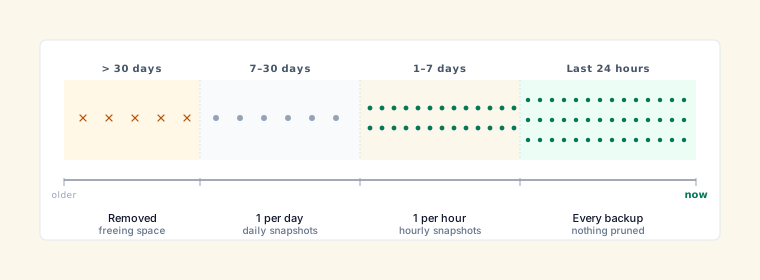
Backups are managed automatically to avoid unbounded disk usage:
- Last 24 hours — all backups are kept
- 1–7 days old — one backup per hour is kept
- 7–30 days old — one backup per day is kept
- Older than 30 days — backups are removed
A global size limit of about 500 MB ensures backups never consume too much disk space. When the limit is reached, the oldest backups are removed first.
Cleanup runs automatically when MarkNode starts and periodically while it is running.