MarkNode treats every link and image in your document as an interactive reference. You can hover to see where a link goes, modifier-click to open it, paste images straight from your clipboard, and reveal local files in the file explorer — all without leaving the editor.
Hovering Links
Hover any link or image in the preview pane to see its destination in a thin strip along the bottom edge. Local references are shown as paths relative to your project root (./docs/install.md) so they are easy to recognise; external links are shown as their full URL.
Opening Links
How a click behaves depends on where you click and which modifier key you hold:
- In the preview — a plain click opens the link. External URLs (
http,https,mailto) open in your default browser. Links to other Markdown files in the project open in the editor. Other local files (PDFs, images, spreadsheets) are revealed in the file explorer sidebar — or in the system file manager if they live outside the project. - In the editor — a plain click places the cursor like normal Markdown text. To follow a link, hold the modifier key —
Cmdon macOS orCtrlon Windows and Linux — and click. The same destination rules apply. - Hash anchors — links to
#anchorjump to the matching heading in the current document. Cross-file anchors like./guide.md#setupopen the file and scroll to the heading.
If you click a broken local link (the file does not exist), MarkNode shows a brief error notification instead of silently doing nothing.
Right-Click Menu
Right-clicking a link or image opens a context menu whose items depend on the link kind:
- For an external URL: Open URL in Browser and Copy URL.
- For a local file: Open File (Markdown files), Reveal in File Explorer (select the file in MarkNode’s sidebar), Show in Finder / Show in Explorer / Show in Files (open the system file manager with the file selected), Copy File Path, and Find All References (for Markdown files, search the project for every place that links to the target — results appear in the bottom panel).
- For a
#anchorlink: Open and Copy Link.
Reveal Modifier
Hold Cmd+Alt on macOS or Ctrl+Alt on Windows and Linux and click a local link to reveal the target in the file explorer sidebar instead of opening it. Useful when you want to see where a file lives in the project before deciding what to do with it.
Pasting Images
When you copy an image — for example a screenshot or an image from a browser — and paste it into the editor with Cmd+V (Windows/Linux: Ctrl+V), MarkNode:
- Saves the image into your project’s media folder (
media/by default). - Generates a timestamped filename like
pasted-1715680222.pngso there are no collisions. - Inserts a relative Markdown image link at the cursor.
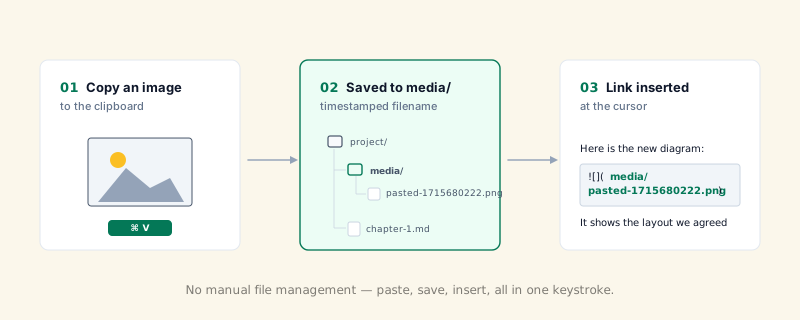
The media folder is created on first paste if it does not exist. You can change which folder MarkNode uses under Settings > General > Image Import — set a “Default folder in project” or choose to save images in the same folder as the document.
If the clipboard contains both text and an image, the text takes priority — standard paste behaviour.
Dragging Images In
You can also drag an image from Finder (macOS) or File Explorer (Windows/Linux) directly into the editor. MarkNode copies the file into your project’s media folder and inserts a relative Markdown link at the drop position.
Opening Images from the Project Tree
Double-click any image file in the file explorer to open it in the editor area as an embedded image view — handy when you want to look at a screenshot referenced by the document you are writing without leaving the app.
Image Syntax
Inline images use the standard Markdown syntax with ! in front:
You can also use inline HTML when you need to control the width:
<img src="media/diagram.png" alt="Diagram" width="400">Both forms participate in hover, modifier-click, and the right-click menu.