MarkNode supports multi-cursor editing for making the same change in multiple places simultaneously, and Focus Mode for reducing distractions while writing.
Adding Cursors Above and Below
To add a cursor on the line above the current one, press Cmd+Option+Up (macOS) or Ctrl+Alt+Up (Windows/Linux). To add a cursor on the line below, press Cmd+Option+Down (macOS) or Ctrl+Alt+Down (Windows/Linux).
You can repeat these shortcuts to add more cursors, building a vertical stack. Each cursor operates independently — typing inserts text at all cursor positions, and backspace deletes at all positions. This is particularly useful for editing aligned lists, table columns, or repeated patterns across adjacent lines.
Press Escape to collapse back to a single cursor, retaining the position of the primary cursor.
Column (Rectangular) Selection
Hold Alt (macOS and Windows/Linux) and drag with the mouse to create a rectangular selection spanning multiple lines. Each line in the selection gets its own cursor at the end of the selected region, activating multi-cursor mode.
Column selection is useful for:
- Adding a prefix or suffix to a block of lines at once
- Deleting a fixed-width column of characters
- Replacing aligned values across several rows
Placing Cursors with Click
Hold Cmd (macOS) or Ctrl (Windows/Linux) and click to place an additional cursor at any position in the document, without disturbing existing cursors. Click on an existing cursor while holding the modifier to remove it.
Focus Mode
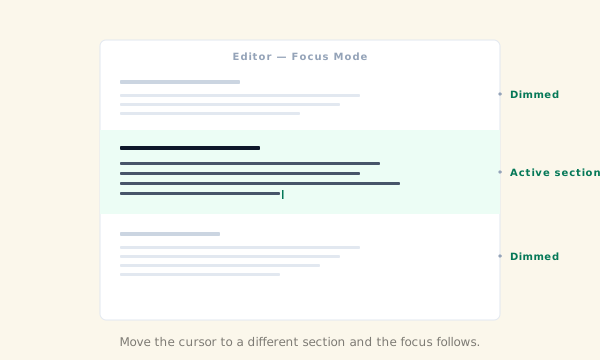
Focus Mode dims all content outside the section you are currently editing, letting you concentrate on one topic at a time without the rest of the document competing for attention.
To toggle Focus Mode:
- Use the View menu and select Focus Mode
- Press
Cmd+Shift+H(macOS) orCtrl+Shift+H(Windows/Linux)
When Focus Mode is active, the heading and body of the section containing the cursor appear at full brightness, while all other sections are visually muted. Moving the cursor to a different section shifts the focus automatically.
Focus Mode works alongside the mind map and outline panel — those panels continue to function normally and can still be used to navigate between sections.
Plain Text and Config Files
MarkNode opens plain text files (.txt) and common configuration formats in the same editor. Markdown-specific features such as the mind map, outline panel, and preview are not activated for these file types, but all general editing features — including multi-cursor, find and replace, and syntax highlighting for fenced code blocks — remain available.