MarkNode lets you choose how the mind map is laid out around its root node. You can also zoom and pan the canvas freely to navigate large maps.
Layouts
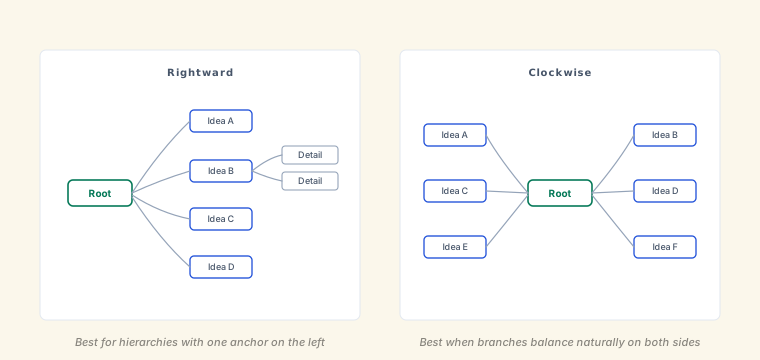
Eight layouts are available, in two groups.
Balanced layouts place the root in the centre and spread branches on both sides:
- Clockwise (default)
- Anti-Clockwise
- Left to Right
- Right to Left
Single-direction layouts grow all branches one way from the root:
- Rightward — branches extend to the right
- Leftward — branches extend to the left
- Downward — branches extend downward
- Upward — branches extend upward
Changing the Layout
To change the layout for the current document, click the layout icon in the mind map toolbar and pick one from the gallery. The active layout is highlighted, and the canvas redraws immediately.
To set the default layout used for documents that do not have one of their own, go to Settings > Mind Map > Default Layout. Existing documents keep their own saved layout and are not affected.
Zoom and Pan
Hold Cmd (macOS) or Ctrl (Windows/Linux) and scroll, or pinch on a trackpad, to zoom in and out. The canvas scales around the pointer position. A plain scroll pans the canvas, and Shift+scroll pans horizontally.
You can also click and drag on any empty area of the canvas to pan. This is useful when the map is larger than the visible area after zooming in.
To reset the view, click the Fit to Screen button in the toolbar; it re-centers the map and adjusts the zoom so all nodes are visible. A separate Center Root Node button re-centers on the root without changing the zoom.