MarkNode renders diagrams directly in the preview. You write a diagram in a fenced code block using Mermaid syntax — a plain-text way of describing flowcharts, sequence diagrams, and more — and MarkNode draws it as an image in place of the code, entirely offline.
Writing a Diagram
Use a fenced code block with mermaid as the language identifier:
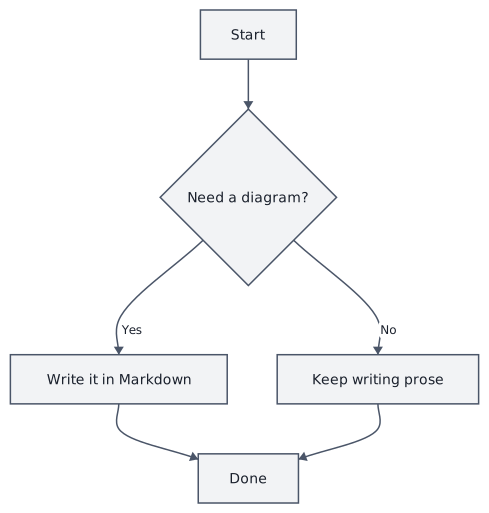
```mermaid
flowchart TD
    Start[Start] --> Decision{Need a diagram?}
    Decision -->|Yes| Draw[Write it in Markdown]
    Decision -->|No| Skip[Keep writing prose]
    Draw --> Done[Done]
    Skip --> Done
```
The preview replaces the code block with the rendered flowchart. The Markdown source is unchanged — MarkNode only draws a picture of it; if you want to change the diagram, you edit the mermaid text and the picture updates.
Fully Styled Diagram Types
Flowcharts, sequence diagrams, class diagrams, and state diagrams get MarkNode’s full treatment — laid out and typeset to match the rest of your document, not just a generic drop-in image.
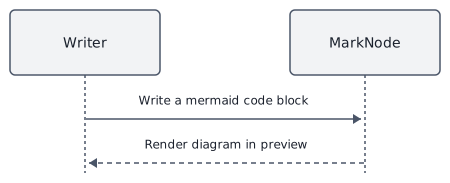
A sequence diagram, for example:
```mermaid
sequenceDiagram
    participant Writer
    participant MarkNode
    Writer->>MarkNode: Write a mermaid code block
    MarkNode-->>Writer: Render diagram in preview
```
Class and state diagrams use the same mermaid fence with their own Mermaid keywords (classDiagram, stateDiagram-v2) and render with the same level of polish.
Other Diagram Types
Many other Mermaid diagram types — including pie charts and Gantt charts — also render in MarkNode today, as real diagrams styled to your theme rather than as code. The same level of custom layout polish that flowcharts, sequence, class, and state diagrams get is planned for these diagram types in a future update.
Matching Your Theme
In the preview, diagrams follow your document’s application theme. Switch themes and any diagrams on screen restyle right along with the rest of the preview — there’s nothing to configure separately.
Quick Look previews follow your Mac’s system light/dark appearance instead. Flowcharts, sequence, class, and state diagrams match either way; pie and Gantt diagrams currently render with a single palette in Quick Look.
Where Diagrams Appear
Diagrams render on every surface that shows your rendered Markdown:
- The docked preview pane
- The undocked preview window
- macOS Quick Look (press Space on a Markdown file in Finder — see Quick Look Previews)
- DOCX export, as an embedded image
Errors
If a diagram’s Mermaid syntax has a mistake — an unrecognized diagram type, a typo in the syntax — MarkNode shows the original fenced code block instead of a broken or blank image. The rest of your document renders normally; only that one block is affected. Fix the source and the diagram appears the next time the preview updates.
Supported Syntax
MarkNode follows the Mermaid project’s own syntax. For the full range of diagram types and options, refer to the official Mermaid documentation — anything valid there is what MarkNode attempts to render.